
Your Email Signature
Your email signature is an underrated conversion tool. Readers' eyes drift there, so make it count.
Build it
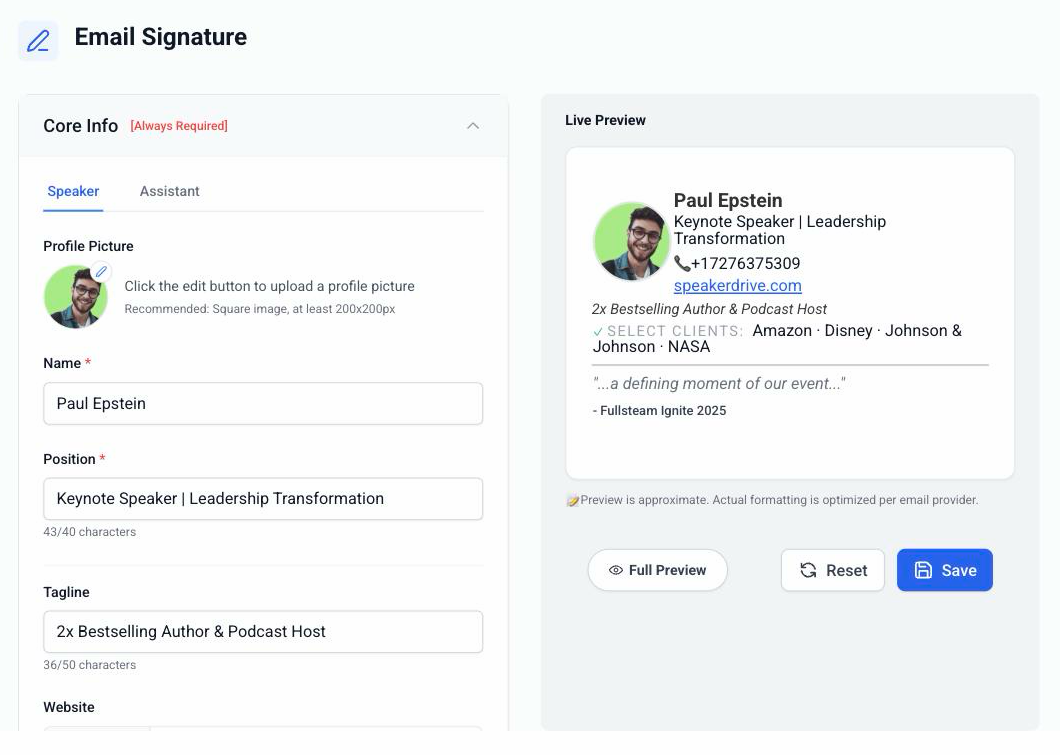
Head to Settings → Email Signature.
Core Info. Your photo, name, position, a short tagline, and your website.
Past Clients. Your most recognizable names. Click Add Field for each one. Instant credibility.
Contact Option. Your speaker reel, your LinkedIn, or a phone number. Pick one.
Testimonials. Up to two short quotes with a source. About 70 characters each, so keep them punchy.
Tip: Long testimonial? Trim it with an ellipsis: "…transformed our entire team…"
Leave a field blank and it simply doesn't show. No empty lines, no placeholders.
Preview it
The Live Preview on the right shows exactly how it renders. Full Preview shows it in a whole email. What you see is what sends.
Click Save when done.
Sending as you, or as your assistant
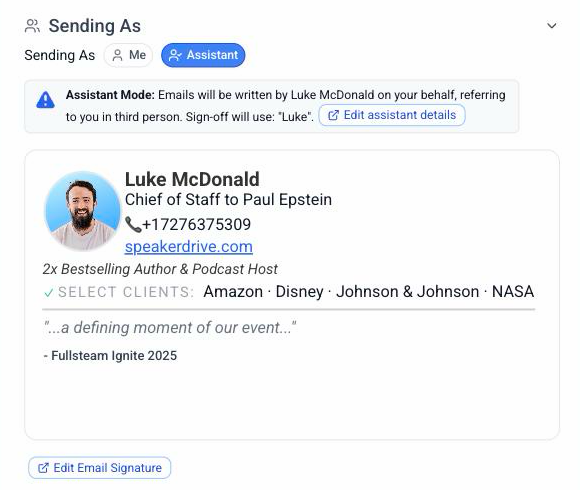
You can send as yourself, or as your assistant.
Me. Your signature, first person. "I'd love to speak at…"
Assistant. Your assistant's signature, third person. "[Your name] would be a great fit for…"
The switch lives under Settings → Outreach Settings → Sending As. Each mode has its own signature: use the Speaker and Assistant tabs at the top of the Email Signature page to fill in both.
One signature everywhere
The same signature goes on every email SpeakerDrive sends for you: outreach, follow ups, out of office follow ups, and replies from the Reply Hub.