
Reply Hub: Quickstart
Every reply to your SpeakerDrive outreach now lands in one place: the Reply Hub. Here's how to get going in about five minutes.
1. See where your replies land
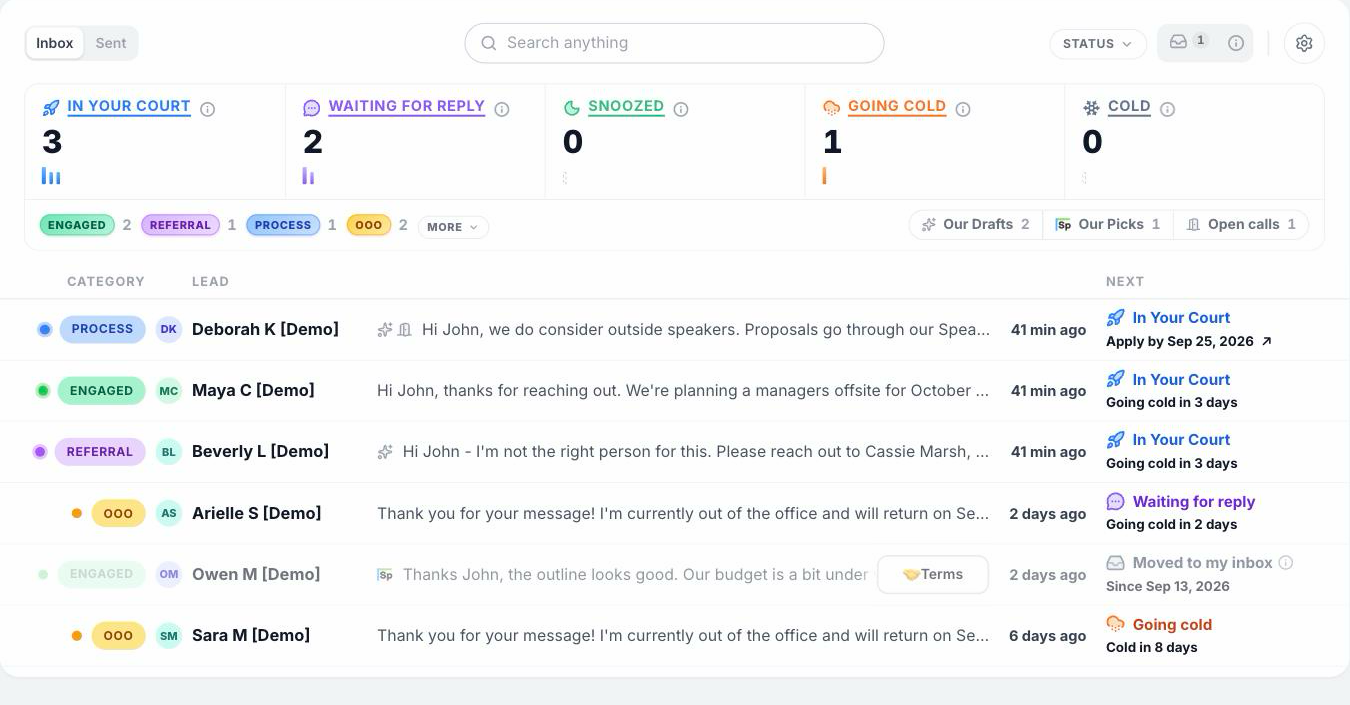
Open the Reply Hub. Every reply sits under one of five tiles that tell you whose move it is. In Your Court means it's on you to answer. Waiting for reply means you answered and it's on them. The rest are parked, or have gone quiet. Every row also carries a tag for what kind of reply it is: Engaged, Referral, Process, or OOO (out of office).
2. Start with In Your Court
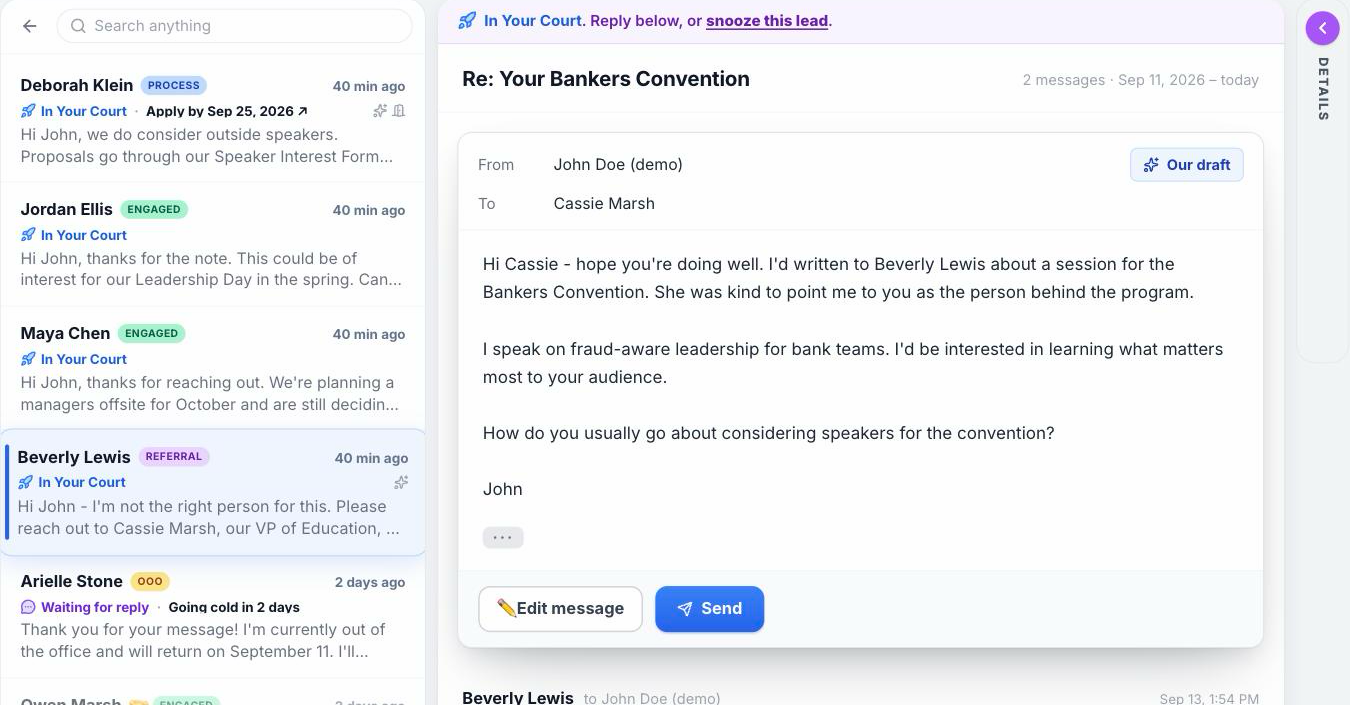
Click the In Your Court tile, then open a lead. The whole conversation is there. If we wrote a reply for you, it sits on top marked Our draft. Read it, change anything, and click Send. If there's no draft, click Reply and write your own. Replying from your regular inbox works too. The hub sees it either way.
3. Let the hub hold the rest
Some replies don't need you right now. "Try us in the spring" gets parked under Snoozed and comes back to In Your Court on the date. An out of office reply gets a follow up that sends itself when the person is back. Nothing else sends without your click.
4. Turn on alerts
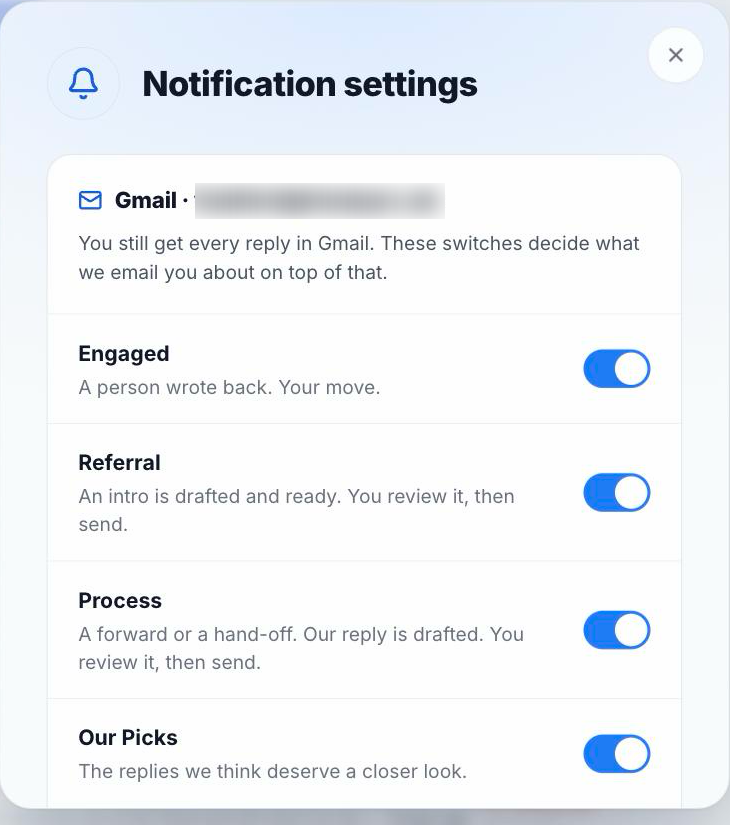
Alerts are off to start. Click the gear at the top right of the hub (Notification settings) and switch on the ones you want. Then you get an email when a lead needs you.
5. Try the demo
Want to see every kind of reply before you touch a real one? Open Reply Hub Tutorial → Enter Demo Mode at the top of the hub. It's made up people with real behavior, and you can't break anything. ✕ Exit demo brings you back.
Want the full picture?
Read Reply Hub: The Full Guide for how every tile, tag, draft, and date works.