
How To Find Leads
SpeakerDrive maps the speaking landscape: conferences, corporate events, training programs, and the decision makers behind them.
Here's how to find the ones that fit you.
Just type what you speak about
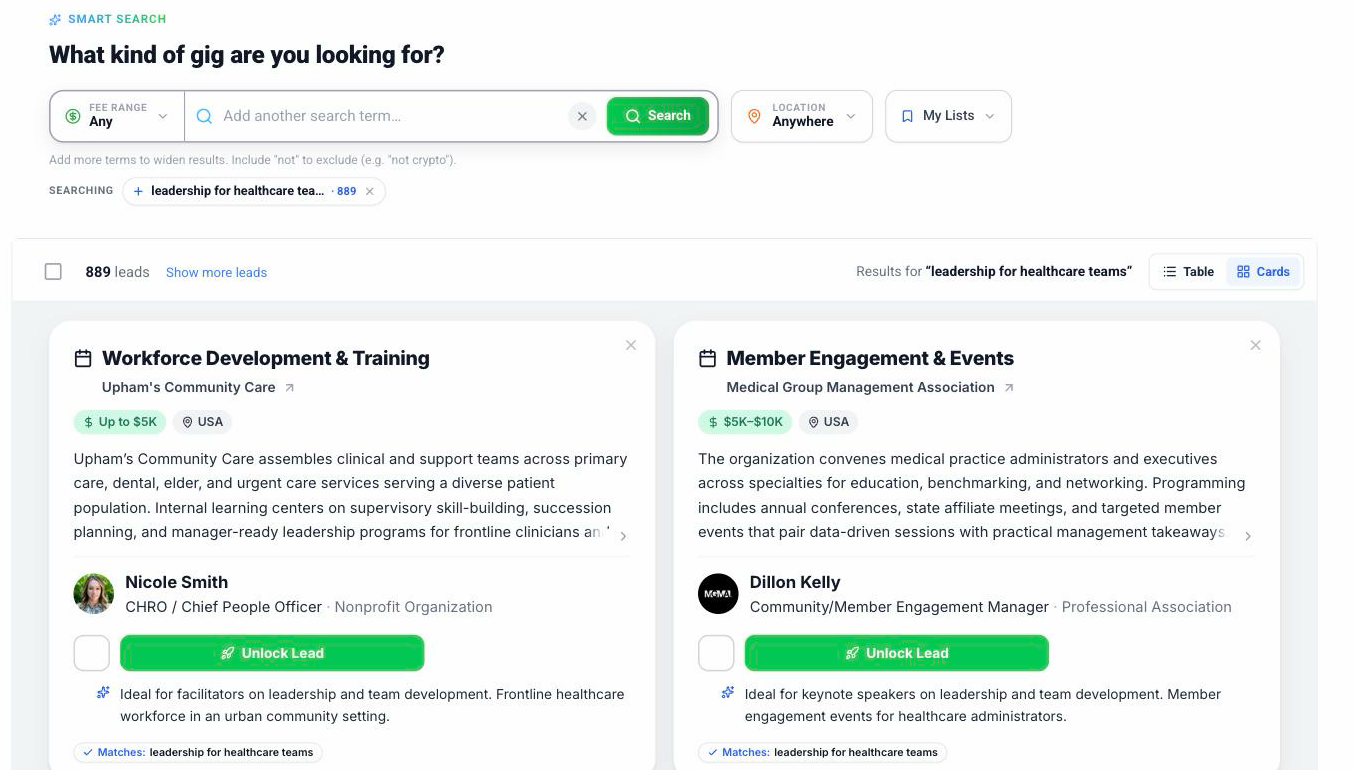
Find Leads is one search bar. It asks: what kind of gig are you looking for?
Type a topic the way you'd say it out loud. "Leadership for healthcare teams." "Burnout." "AI for sales teams." Press Enter.
Each search becomes a chip, with a count of how many leads it matched. Add more chips to widen the net. The results combine.
Want to leave something out? Type it with "not" in front. "Not crypto" does exactly what it says.
Tip: Stuck for ideas? Click Shuffle Ideas for a few fresh directions.
Read the results
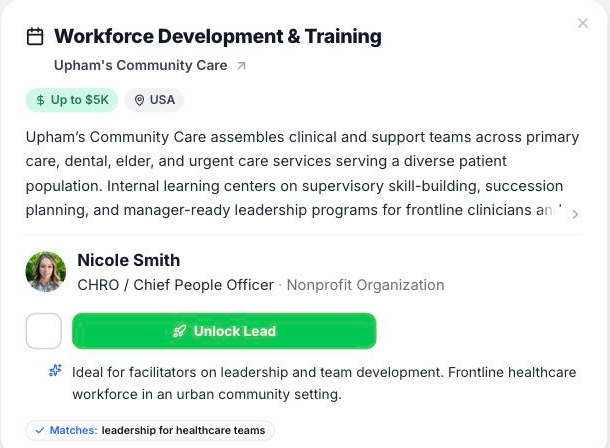
Every row shows the event, the organization, the contact, and the fee range.
Look for the Matches line. It tells you which of your terms this lead matched.
The "Ideal for" line is our quick read on why this lead fits you.
Narrow it down
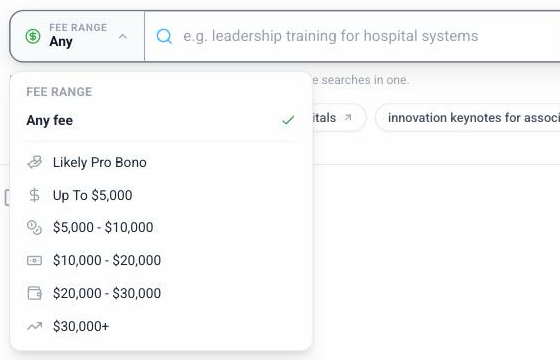
Use the pills above the results to narrow by Fee Range and Location.
Your choices stick, so the next time you come back the page remembers.
Cards or table
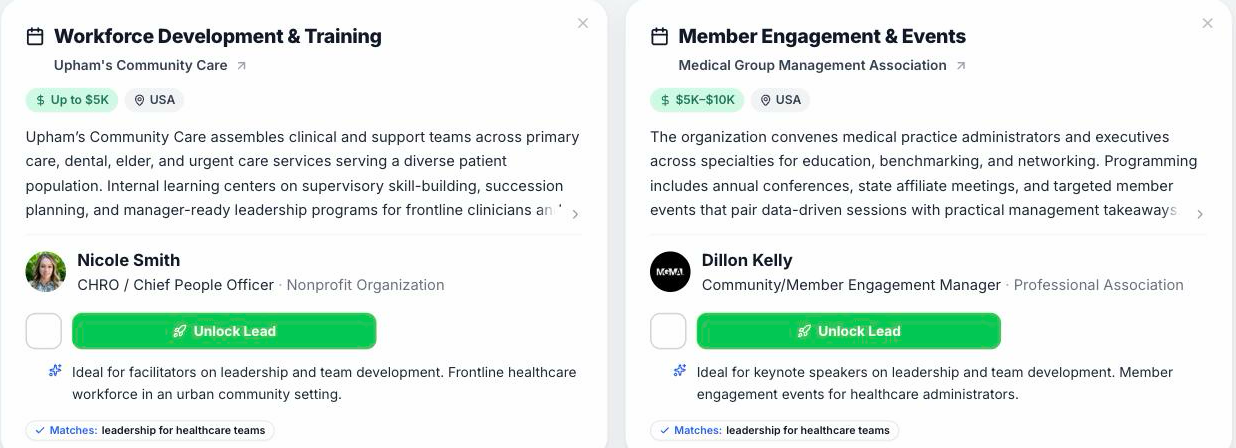
Switch between Table and Cards with the toggle at the top right of the results. Best matches come first either way.
Not interested in a lead? Click the ✕ in the corner of its card and it's gone. There's an Undo if you change your mind.
Click any lead's name to open its details on the right. More on that in Lead Details.
Take action
One lead: click Unlock Lead on the row. It unlocks the contact and writes your emails.
Several leads: check the boxes and click Unlock + Add to Autopilot. They all go straight into Autopilot.
Tip: This is the fast way to work. Load a month of leads in one sitting and let Autopilot pace them out.
Miss the old filters?
Click Show legacy search at the bottom left of the results to use the old filter panel for a visit.