
Reply Hub: The Full Guide
The Reply Hub is where every reply to your SpeakerDrive outreach lands. Each one is sorted by whose move it is, tagged by what kind of reply it is, and often comes with the next email already written. New to the hub? Start with Reply Hub: Quickstart. This page is the full reference.
The main screen
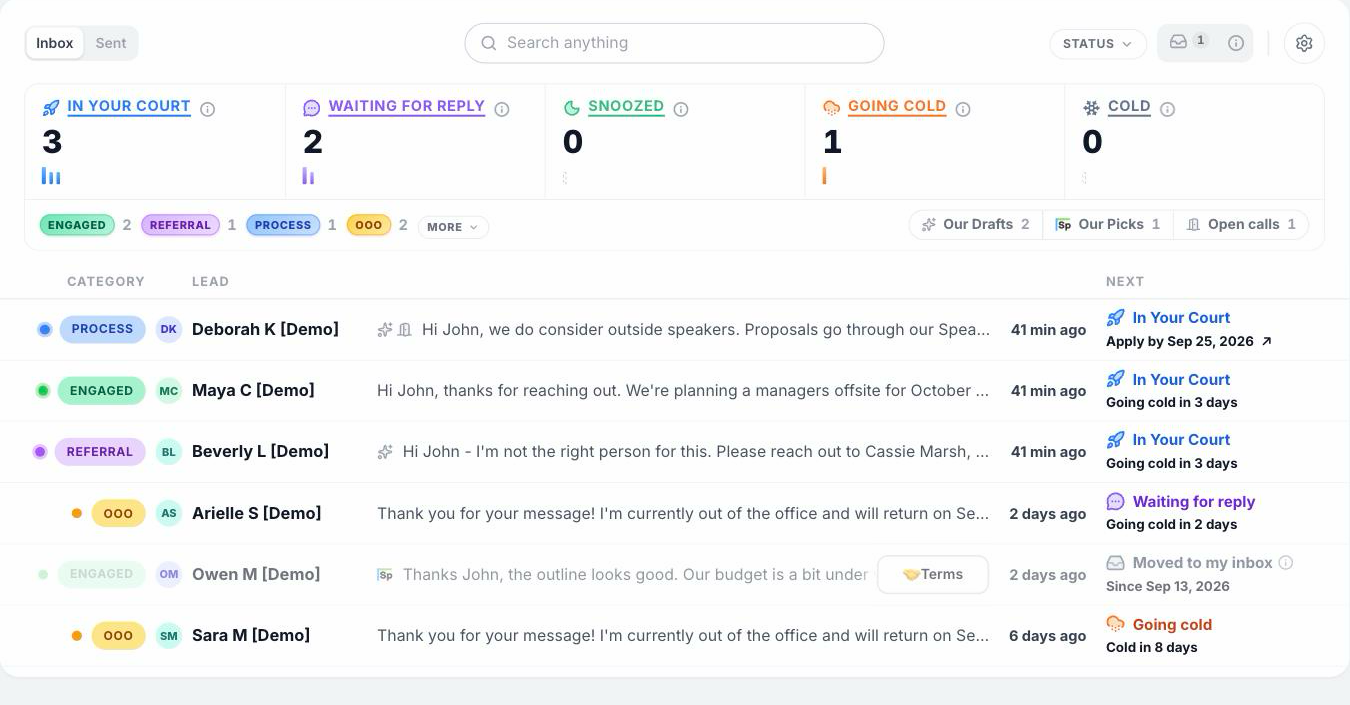
Search anything finds a lead by name, organization, event, or the words in their reply. Two tabs sit on the left: Inbox (the main list) and Sent (everything you've sent). On the right: Status, Moved to my inbox (explained below), and the gear. Under those sit the five tiles, the tags, and the list. Each row shows who wrote, the tag, which tile it sits under, what happens next, and a line of their message.
The five tiles
Every lead sits under one tile. The tile answers one question: whose move is it? Click a tile to see only those leads.
In Your Court. They wrote back, and the next move is yours. Reply from the hub or from your regular inbox, either one works. As soon as you send, the lead moves to Waiting for reply. Not ready to answer yet? Snooze it and pick a date. If it sits here for a few days with no reply from you, it moves to Going cold.
Waiting for reply. You sent something, and now it's on them. Nothing sends on its own while a lead sits here. The moment they write back, it jumps to In Your Court. If they stay quiet for a week, it moves to Going cold. You can follow up, or snooze it, at any time.
Snoozed. Parked until a date. A lead lands here three ways: you snoozed it; the lead named a later time ("try us in the spring") and we set a date from that; or an out of office follow up is scheduled to send. Whatever the reason, the row counts down the days, the details page shows the date, and you can change it whenever you like. On the date, the lead wakes up and comes back to In Your Court (or the follow up sends, and it moves to Waiting for reply). If they write back before then (a real message, not an auto reply), it wakes up early. A snoozed lead doesn't go cold while it waits, and nothing sits in Snoozed without a date.
Going cold. Nobody has moved for a while. The row counts down the days until it turns Cold. A short follow up often brings it back. You can also snooze it, or close it. Do nothing, and it moves to Cold when the count runs out.
Cold. Quiet for a long time. Nothing more happens on its own. But Cold does not mean dead. A real reply from them brings the lead right back to In Your Court, and you can still follow up, snooze, or close it from here.
The clocks. From In Your Court, a lead moves to Going cold after 3 quiet days, and to Cold 10 days after that. From Waiting for reply, it moves to Going cold after 7 quiet days, and to Cold after 30. A snooze date holds the clock until the lead wakes. Move to my inbox stops the clocks.
The tags
Every reply gets one of four tags:
- Engaged. A real person is talking to you: a question, some interest, a fee ask. These are yours to answer in your own words.
- Referral. They pointed you to someone else. We write the intro.
- Process. They pointed you to a form, a portal, or a later date. "Here's how to apply" and "try us in the spring" both live here, and so does a polite "not this year," parked with a date a few months out. We usually write the note.
- OOO. An out of office auto reply. We handle the follow up.
Once in a while a reply has no tag. That means we couldn't tell what it was, so it sits In Your Court for you to read. Hard no's and dead addresses don't clutter the list: under More you'll find Closed, plus a link to Archived in Settings (bounces and opt outs).
Next to the tags sit three extra views. Our Drafts is every lead with an email we wrote, waiting for your click. Our Picks is the leads we think are worth a closer look, plus any lead you marked Showing promise or higher. Open calls is the leads that told you how to apply. Each one shows the deadline when the reply gave one, and you can mark it I'm interested, I applied, or Not interested. Mark I applied and we set a reminder.
Opening a reply
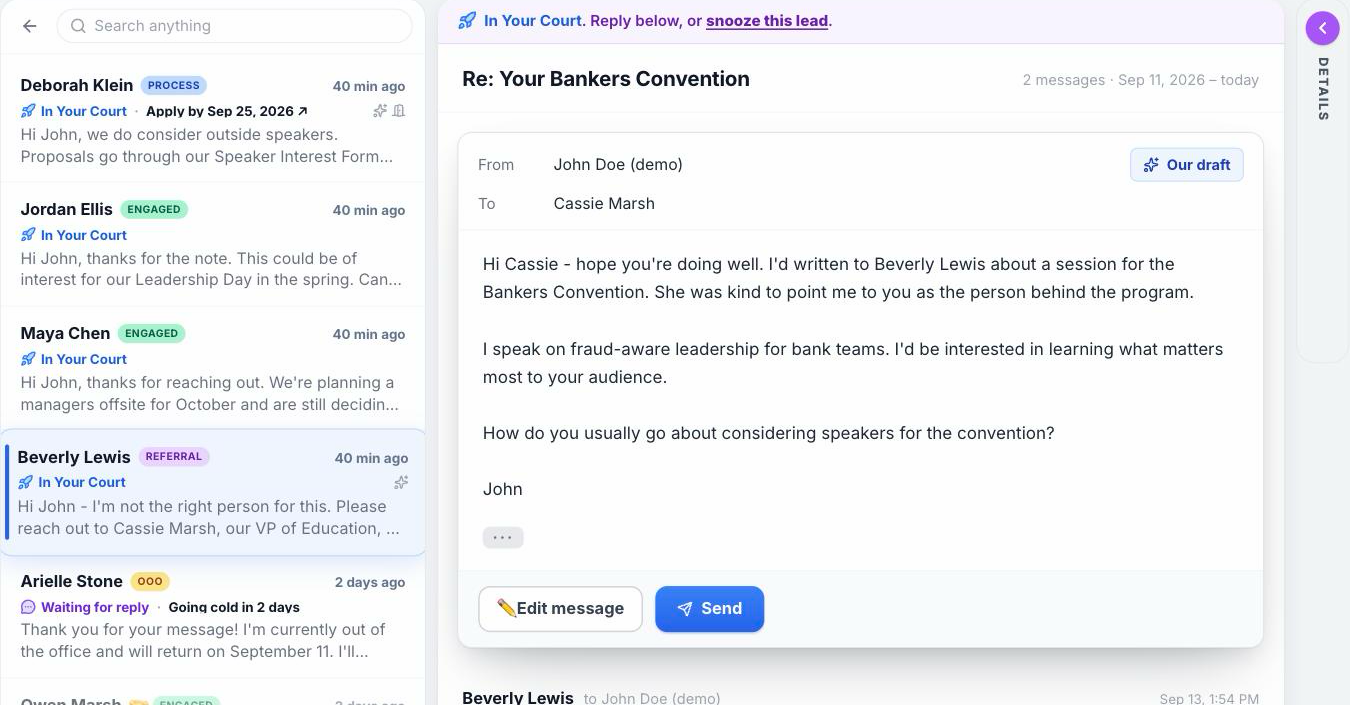
Click any row to open the details page. The whole conversation is there. At the top, one line tells you where the lead stands and what happens next. For example: "Snoozed until Tue, Oct 6, 2026 (edit). It wakes to In Your Court then, or sooner if Kirsten replies."
If we wrote a reply for you, it sits on top of the thread as a card marked Our draft. You can Edit message and then Send, Send it as is, or Delete Draft and write your own. Nothing goes out until you click Send. While the card is up, it is your door to the thread. Once it's sent or deleted, the Reply button comes back.
At the bottom: Reply (it reads Follow up when you spoke last), Timeline, where you set or change a snooze date, and Stop working this lead, which closes it. On the right: Lead Status and the Move to my inbox switch, both explained below.
What we write for you
We write the routine replies, so you can spend your words on the real conversations.
- Referrals. When someone points you to the right person, we write the intro to that person. Read it, change anything, click Send. Once it goes out, the row follows the new person, and the original thread stays inside as history.
- Process replies. When an event tells you how to apply, or says "try us in March," we write a short, courteous note and set a reminder date. Send the note when you like. If you leave it for a few days, the lead rests under Snoozed until the reminder date, then comes back to In Your Court. When a reply needs your own words instead (they asked for materials, say), there's no card. Our version waits behind Reply → Start from our draft if you want it.
- Out of office. These go a step further. When someone is out, we write the follow up and schedule it for when they're back. It sends on its own, from your own email address. Until then the lead sits under Snoozed, with the send day counting down on the row. You can Edit message, Cancel send, or change the date. If either of you writes on the thread first, the send cancels itself. After it sends, the lead moves to Waiting for reply. Cancel it yourself and the lead comes back to In Your Court (or waits under Snoozed if there's still a date to wait for). Two exceptions: if you were already mid conversation when the out of office came in, we send nothing, and the lead comes back to In Your Court the day they return. And once in a while an out of office reply looks personal or complex. Then we hold the follow up instead: it sits In Your Court with a Send button, and nothing goes out until you click.
Engaged replies don't come with a draft. Those are the ones worth your own words. And the out of office follow up is the only email the hub sends without you clicking Send.
Replying from the hub or from your inbox
Either works. Replies still land in your regular inbox, just like before. Answer from there, and the hub sees it within about ten minutes. Answer from the hub, and it shows in your Sent folder. Everything you send from the hub goes out from your own email address, with the same name Autopilot uses.
Snoozing, and changing any date
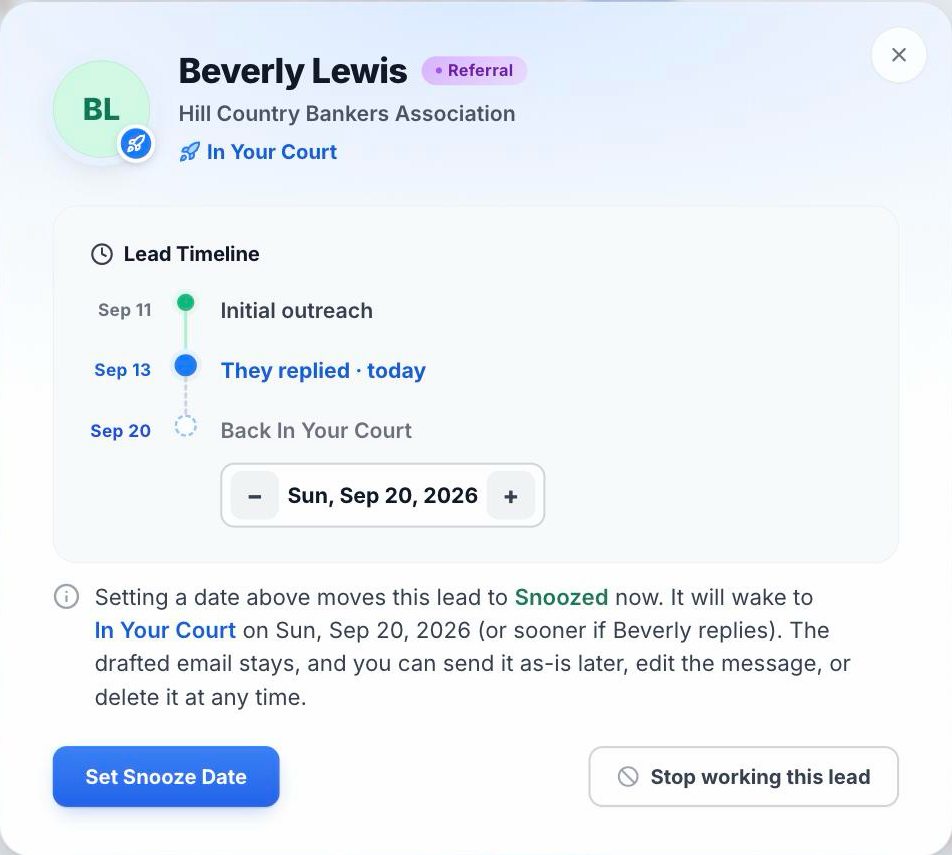
You can snooze any lead. Click the countdown on the row, the date in the top line, or the Timeline button, and pick a day. The popup shows the lead's timeline and tells you in one sentence what the click will do. Any draft we wrote stays with the lead, ready to send. When we set a date for you, it's our best read of their words, so change it if you know better. Want a heads up on the day a lead wakes? Turn on the "Snoozed leads waking up" alert (see Email alerts).
Lead Status
Lead Status is your own note on how it's going. It's separate from the tiles, and nothing changes on its own when you set it. Pick a rung from the Status cell on the main screen, or the Lead Status block on the details page: Showing promise, Call booked, Talking terms, or Booked a gig. Clear it any time. Showing promise or higher also adds the lead to Our Picks. Use the Status filter to see every lead at one rung.
Closing a lead
When a lead is not a fit, or just not worth your time right now, close it: choose Not a fit from the Status menu, or Stop working this lead on the details page. The lead leaves the main list and sits under More → Closed. Any pending snooze or scheduled follow up is canceled, and Autopilot stops emailing them. If they ever reply, it comes right back into your list. You can also reopen it yourself at any time.
Moving a lead to your inbox
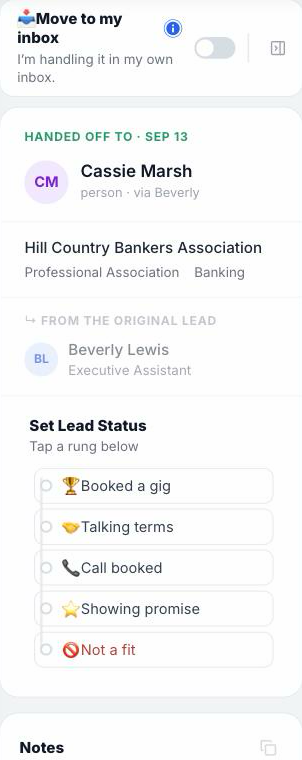
Some conversations you'd rather run from your own inbox, for example once you're talking terms. Flip Move to my inbox on the details page. It asks where the lead stands first (pick a Lead Status rung), then the hub goes hands off for that lead: no reminders, no snooze wakes, no follow ups, no alerts. Any pending snooze or scheduled follow up is canceled. The lead stays in your list, greyed out, and replies still show up on the thread. All of these also sit under Moved to my inbox at the top right. Move it back any time; the clocks start fresh from that day, and the canceled dates stay canceled.
Email alerts
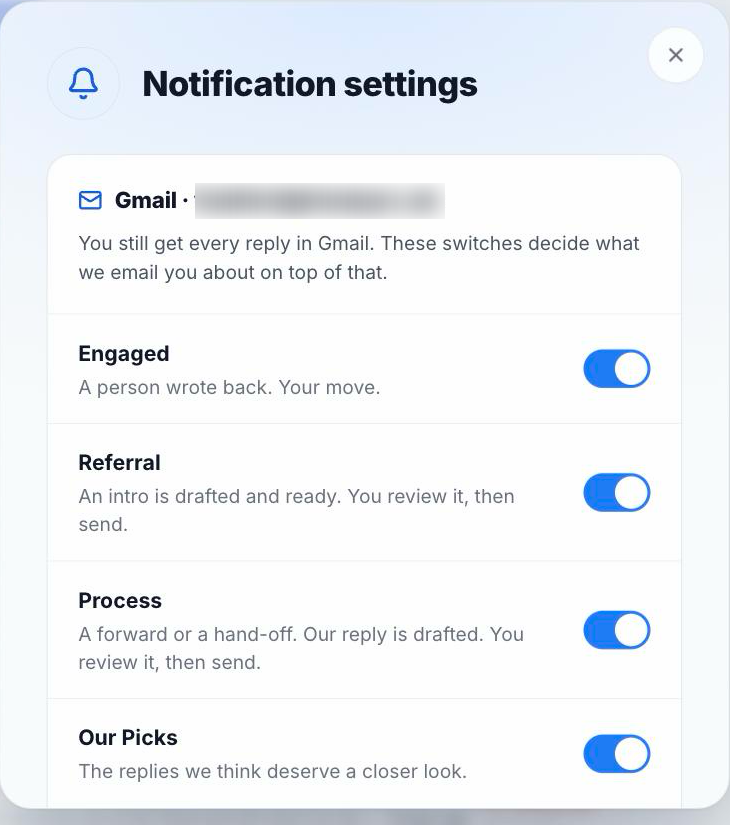
Alerts are off to start. Click the gear at the top right of the hub (Notification settings), or go to Settings → Notifications. There is one switch for each kind of event:
- Engaged, Process: an email each time a person writes back with that kind of reply.
- Referral: an email when the intro we wrote is ready for you to send.
- Our Picks: an email when a reply we think deserves a closer look comes in.
- Snoozed leads waking up: one email early in the morning (7:30 am Eastern) on days a snoozed lead comes back.
- OOO we held: an email when we hold an out of office follow up for you.
Each alert comes from SpeakerDrive (support@speakerdrive.com), shows the reply and our draft if there is one, and has one button that opens the lead. Yes, that means two emails, one in your inbox and one from us. If that bugs you, turn them off any time.
Your reply history
We brought in your full SpeakerDrive reply history, so the hub has the full picture from day one. Older conversations sit under Cold. Look through those too. Cold doesn't mean they're not still viable. A short follow up can bring some of them back. Some older threads carry a draft too. Read those before sending, since the dates in them may have passed.
Try it in Demo Mode
Want to click around without touching a real lead? The first time you open the hub, a short intro offers the demo. After that, open Reply Hub Tutorial → Enter Demo Mode at the top of the hub. It's made up people with real behavior, and you can't break anything. ✕ Exit demo brings you back to your real replies.
Questions
Have a question or spot something off? Use the feedback box on the Reply Hub's How It Works page, or Settings → Support. It comes straight to Austin.