
How Autopilot Works
Autopilot runs your outreach for you. You load the leads. It writes the emails, sends them on a steady schedule, handles the follow ups, and stops when someone replies.
You answer the people who are interested.
The tabs
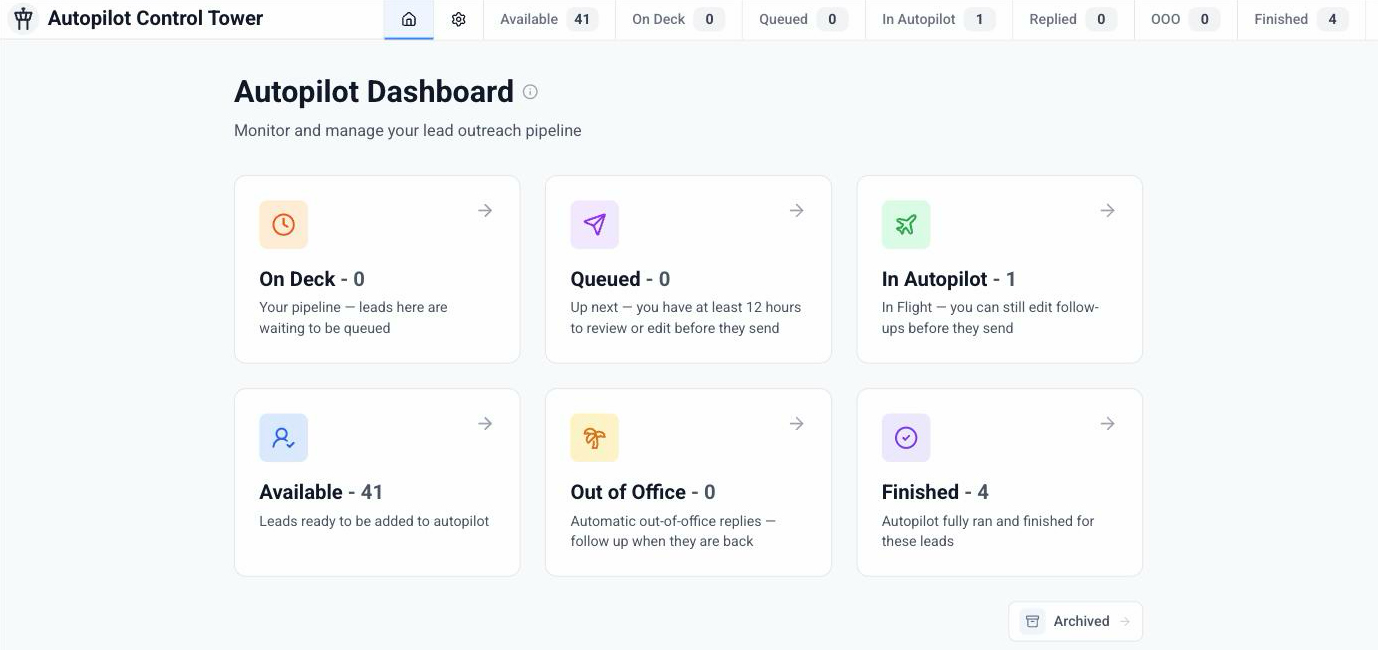
Open Autopilot from the sidebar. You'll land on the Control Tower. Every lead sits in one tab:
Available. Unlocked, not yet added to Autopilot. Nothing sends from here.
On Deck. Waiting for room. When the day's queue is full, new leads wait here and move up on their own.
Queued. Emails written, waiting at least 12 hours before the first send. Your review window.
In Autopilot. In flight. The first email is out and the follow ups are on the schedule. You can still edit a follow up before it sends.
Replied. They wrote back. Head to the Reply Hub to answer.
OOO. An out of office reply came back. The follow up is already scheduled for when they're back.
Finished. The full sequence ran with no reply. Nothing more sends.
Two more things on the page: the gear opens the outreach settings that apply to every Autopilot lead, and Archived (under the cards) holds leads that didn't pass our accuracy audit. Those are archived on their own and the unlock is refunded.
The pace
Every weekday, Autopilot sends a steady batch, roughly 25 to 30 emails a day, follow ups included. Eastern time, no holidays.
Follow up 1 goes out two or more days after the first email. Follow up 2 goes four or more days after that.
Add 200 leads at once and Autopilot works through them day by day. You don't need to come back.
What pauses a lead
Autopilot protects your reputation. A few things it does on its own:
If someone at an organization replies, other leads at that same organization pause. You'll see a Paused chip on the lead, with a button to resume when you're ready.
Before the first email, every address gets checked again. A dead address is dropped and the unlock refunded.
If your Gmail needs reconnecting, sending waits until you do.
You're in control
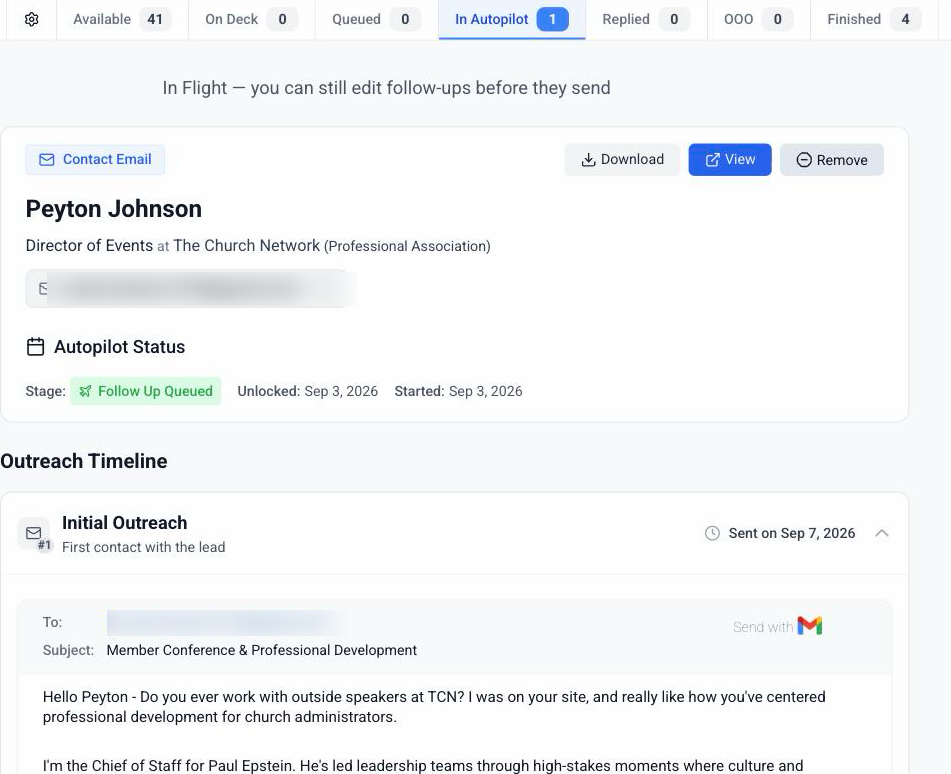
Open any lead and you'll see its Outreach Timeline: each email, when it went out or when it's due, and an editor right under it.
Before an email sends, you can:
Edit it, right there. It saves as you go.
Send now, from a Queued lead, if you don't want to wait.
Remove the lead. Nothing further sends.
Out of office replies
When an out of office comes back, Autopilot writes a short follow up and schedules it for when the person is back. It sends on its own.
You can read it, change it, move the date, or cancel it from the Reply Hub.
Replies
When someone writes back, the lead moves to Replied here, and the conversation shows up in the Reply Hub, sorted by what to do next. Replies land in your Gmail too.