
Autopilot: Managing Your Pipeline
Once leads are added to Autopilot, they move through four stages automatically. Here's what each stage means and what you can do.
Settings
Same settings as the composer — applied to every Autopilot lead
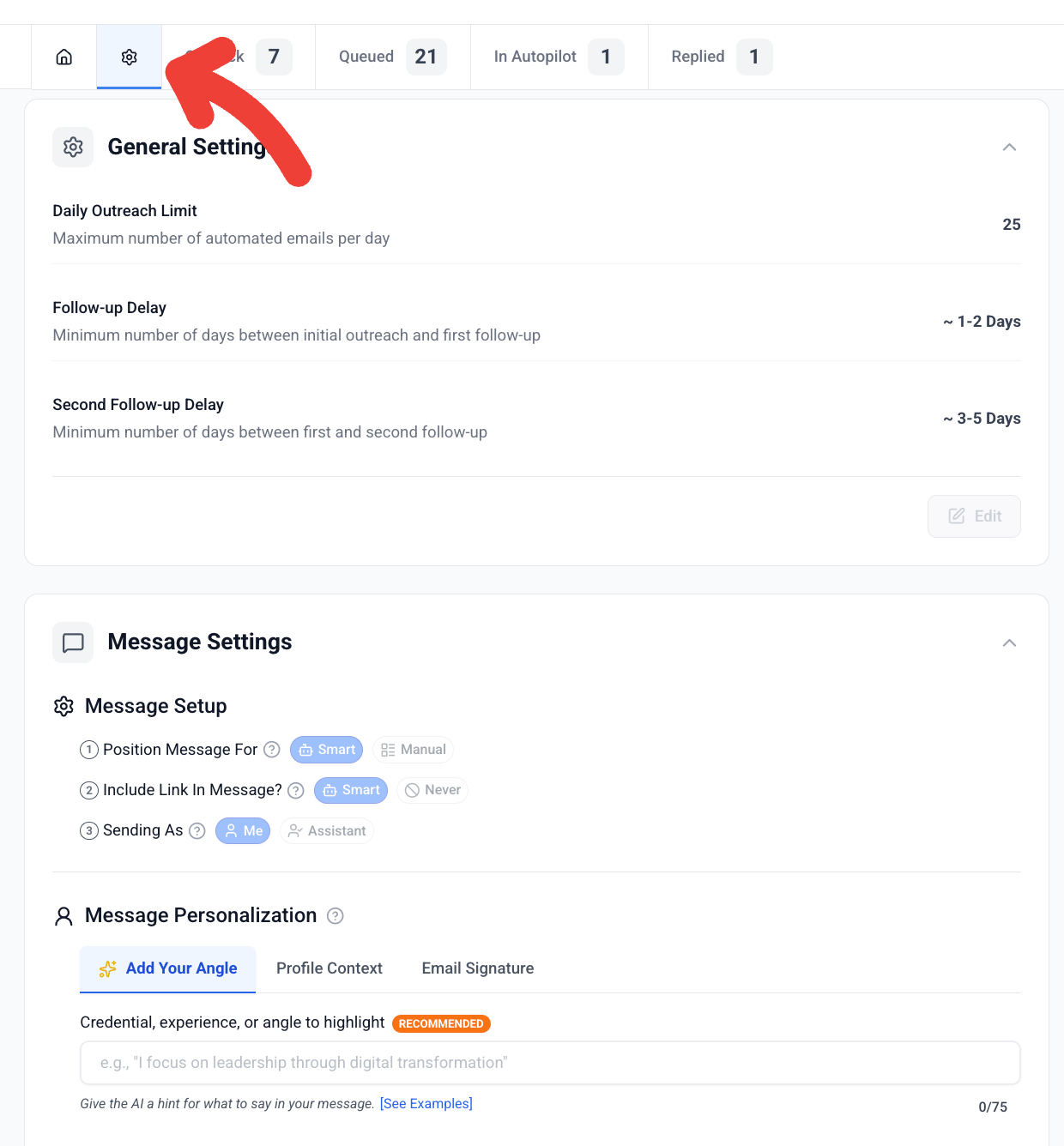
These are the same outreach generation settings you use when sending manually. Any changes you make here will apply to all subsequent leads that run through Autopilot. [Learn more about outreach generation settings →]
On Deck
Leads staged and ready to go
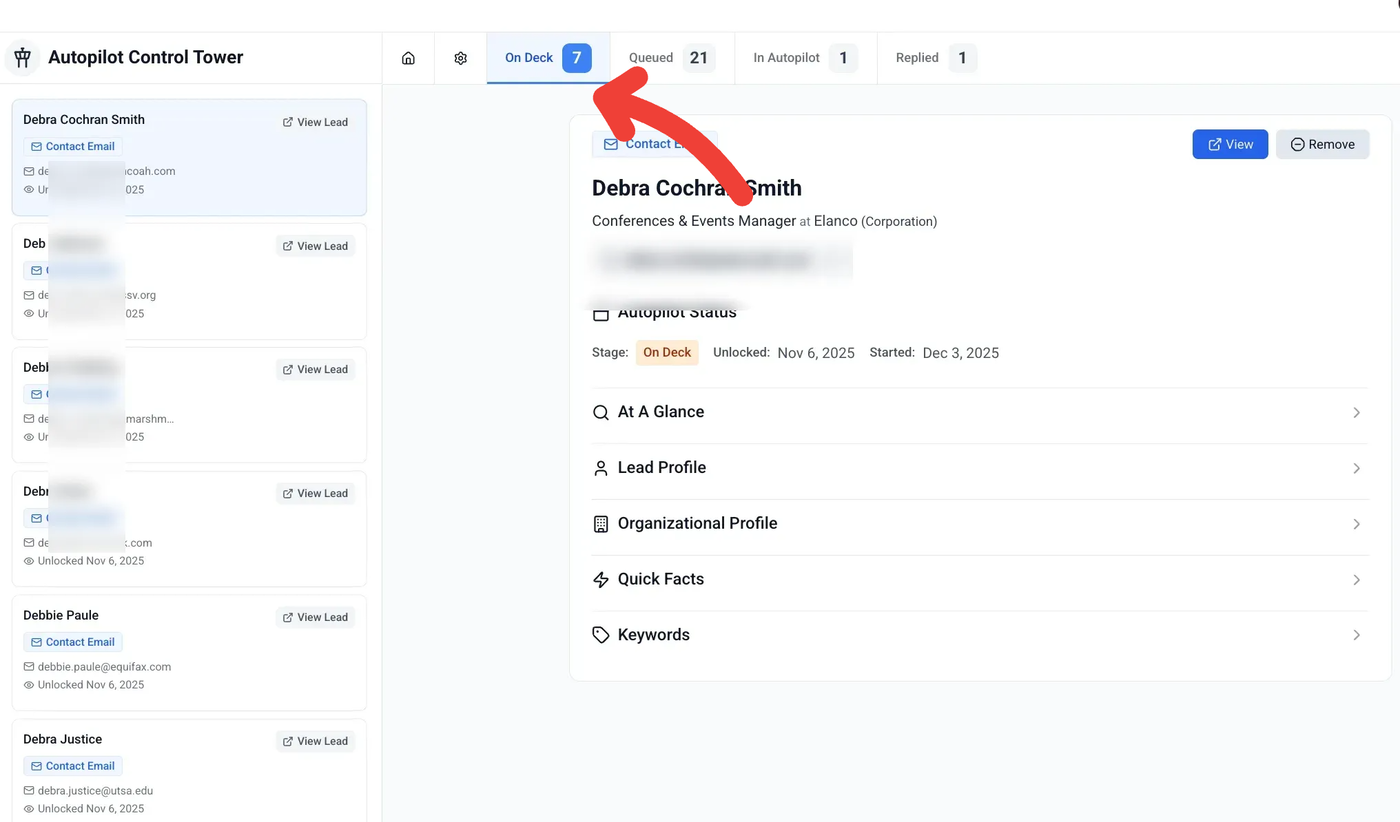
Your holding area. Add as many leads as you want — they'll drip into the queue automatically (up to 25 at a time).
Queued
Up next — at least 12 hours to review or edit before they send
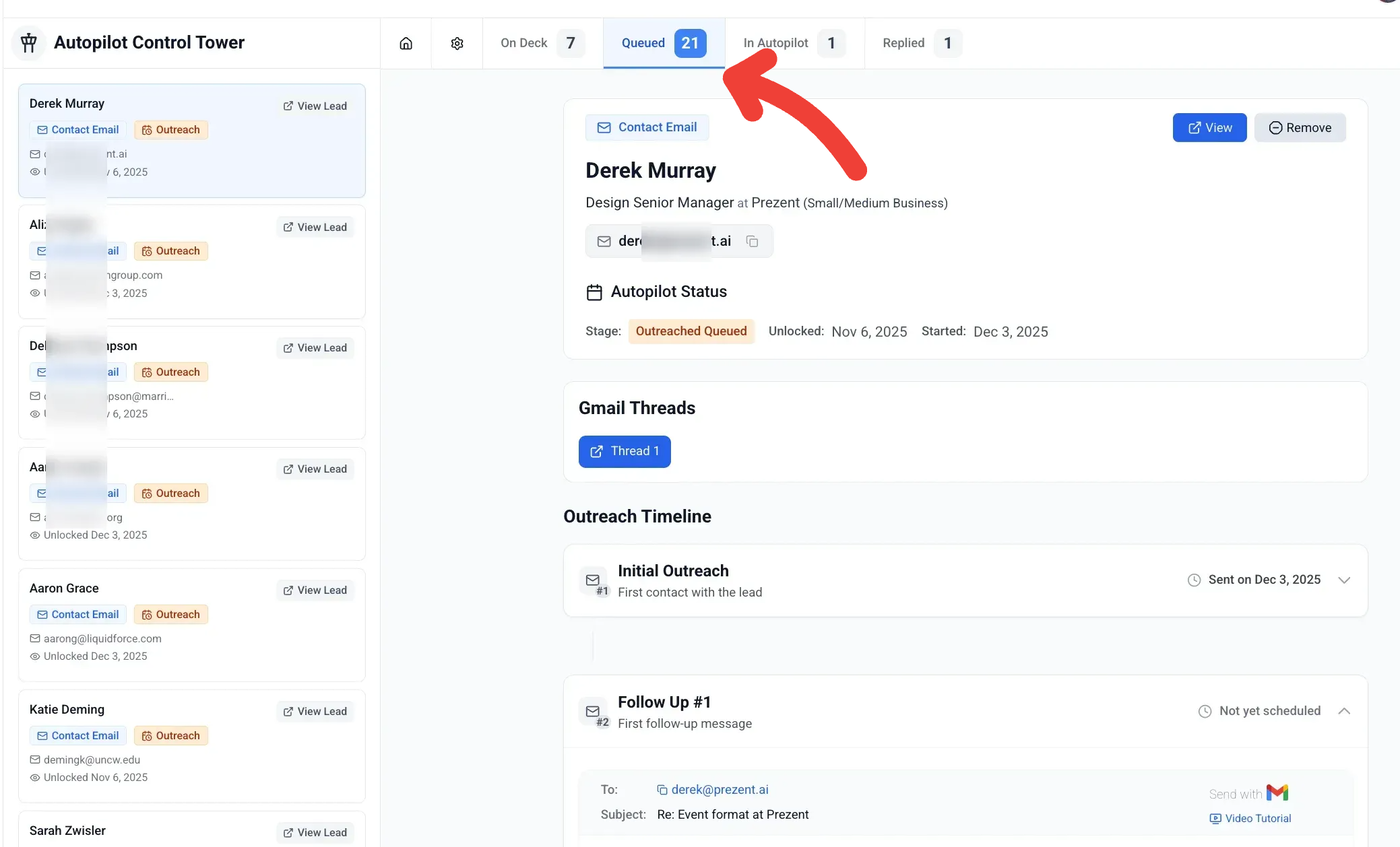
These leads are scheduled to go out in the next batch. Preview messages, make edits, or remove leads before they send.
In Autopilot
Outreach sent — you can still edit follow-ups before they send
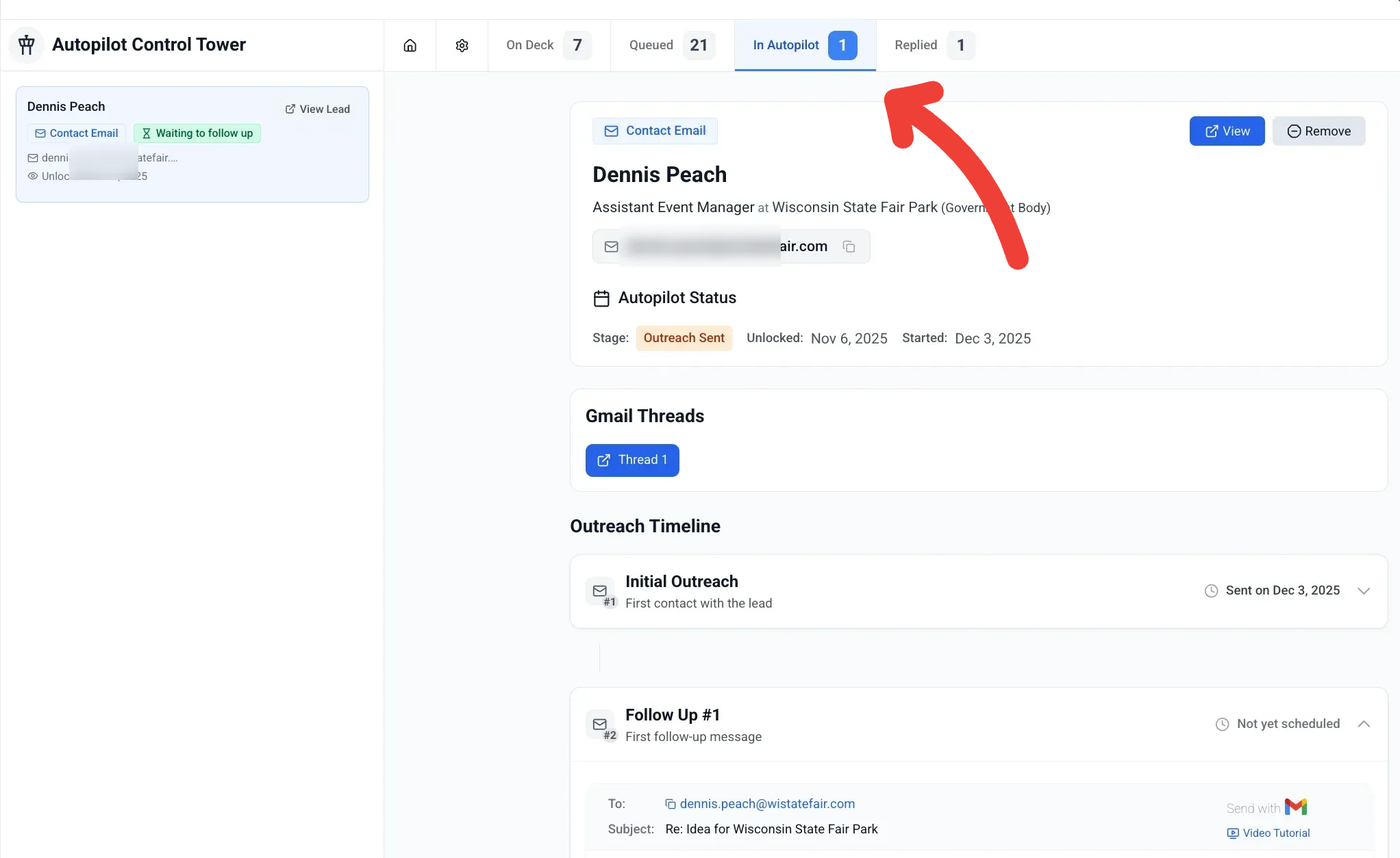
Initial email is out. Follow-ups are scheduled (1-2 days, then 3-5 days). You can still edit any message that hasn't sent yet.
Replied
They replied — your turn
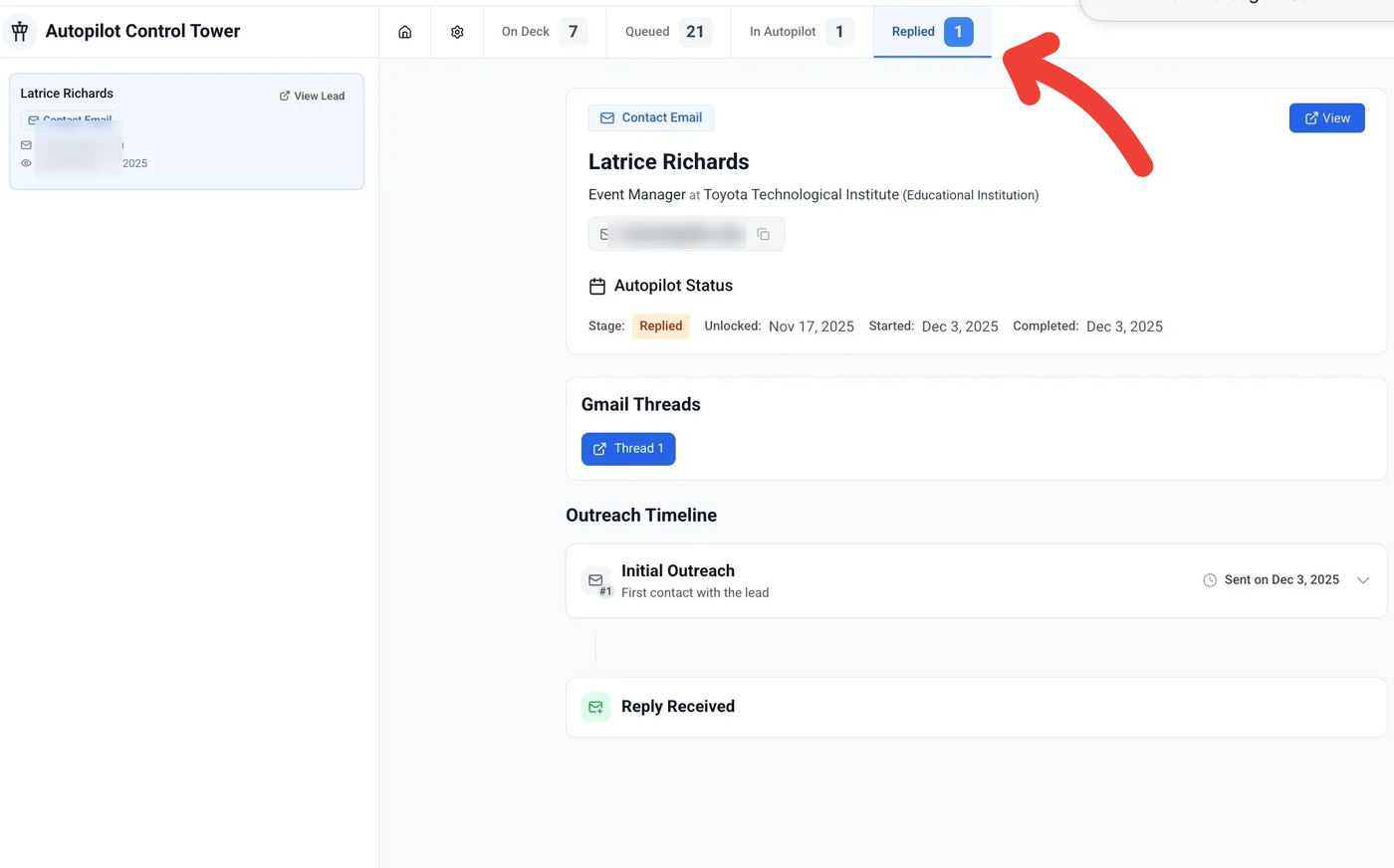
When someone responds, they land here. You'll also see the reply in your Gmail inbox.
AI replies coming soon!
Here is a quick summary of the autopilot stages:
Stage | What It Means |
|---|---|
On Deck | Your queue of leads waiting to enter Autopilot. Add as many as you want — they'll drip in automatically. |
Queued | The next batch (up to 25) ready to be sent. You get a ~12-hour window to review or edit before they go out. |
In Autopilot | Sent and running. Initial email is out, follow-ups are scheduled. |
Reply Received | Someone replied. You'll see it here and in your regular email inbox. AI replies coming soon. |