
Autopilot: Adding Leads
There are two ways to add leads to Autopilot — pick whichever fits your workflow.
Option 1: Bulk Enable from Unlocked Leads
The fastest way to load up Autopilot.
Go to Find Leads
Use filters and search to narrow down your list
Check the box to select leads (or select all)
Click Unlock
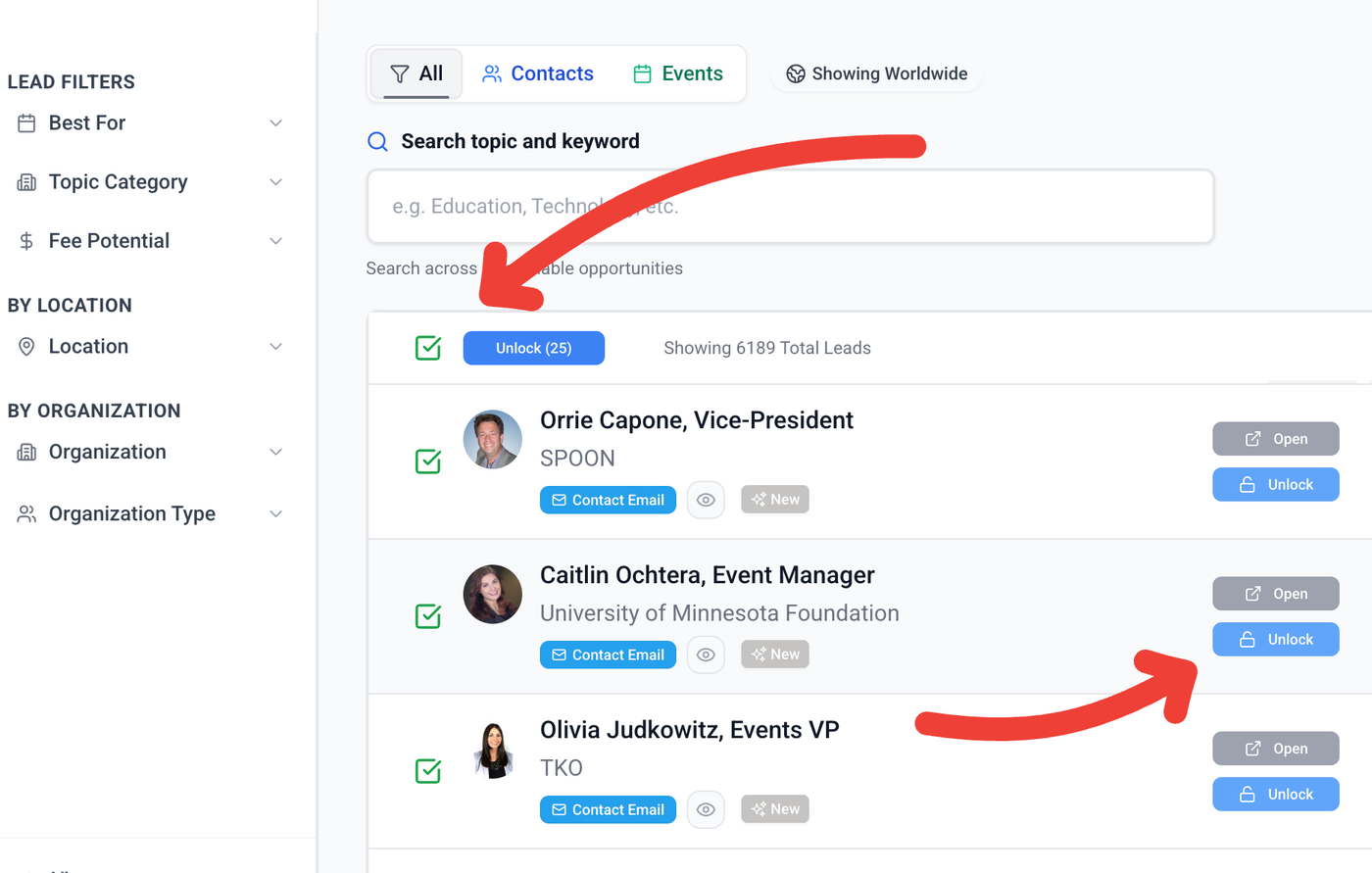
Once unlocked, they'll land in your Unlocked Leads tab. From there:
Set the filter to Autopilot Eligible
Check the box to select leads
Click Enable Autopilot
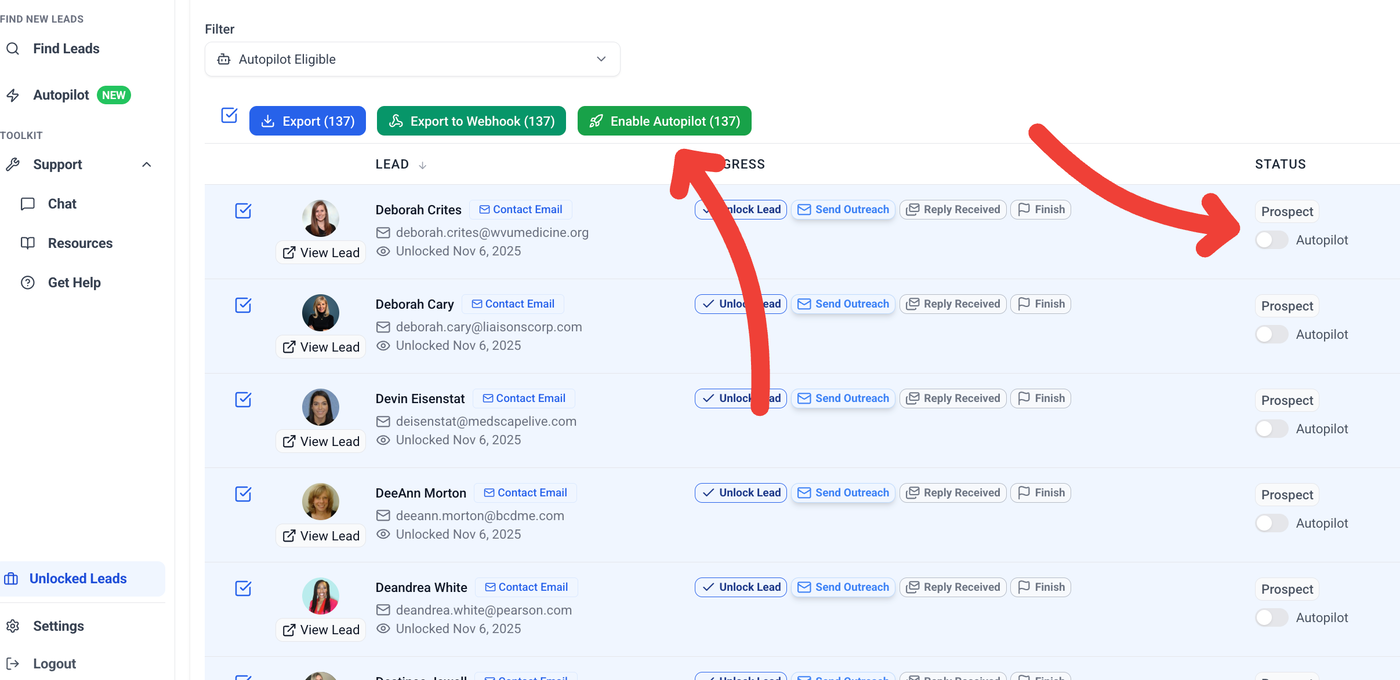
You can also toggle Autopilot on for individual leads using the switch on each row.
Option 2: Send and Add to Autopilot
Prefer the manual approach? You can still generate and review each message individually — then hand off the follow-ups to Autopilot.
Open a lead and click Send Outreach
Review or edit the generated message
Click Send and Add to Autopilot
This sends your initial email immediately and queues up the follow-ups automatically.
New to the composer? See [Generating Outreach →] and [Sending Outreach →]
What Happens Next
Once leads are added, they land in On Deck and flow through Autopilot automatically. [Managing Your Autopilot Pipeline →]